When I started managing paid ads campaigns back in 2006, tracking was a nightmare. We’d spend thousands on Google Ads and Facebook campaigns, and at the end of the month, we’d get a bunch of traffic numbers that looked impressive but told us absolutely nothing about which specific ad copy actually converted customers.
Fast forward to today, and I’ve managed over $2000+ in monthly ad spend for clients across industries—from a pest control service provider in India to an educational startup in Canada, from university admission campaigns to European business consulting firms. And I’ve learned one thing crystal clear: UTM parameters are the difference between profitable advertising and expensive guessing.
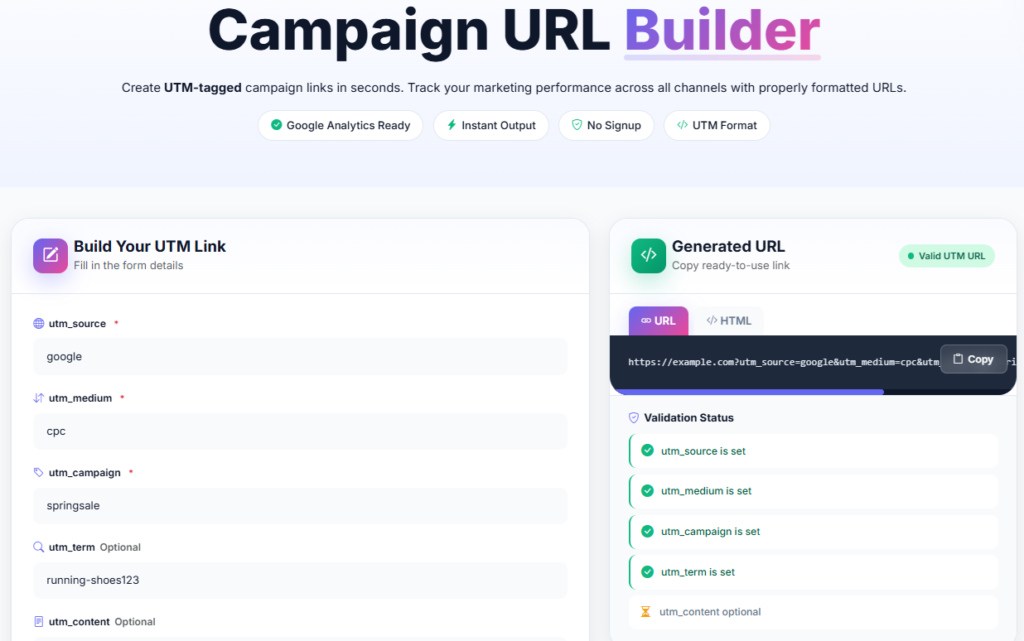
Our IT Team developed this tool which can be used to create Google Analytics Read UTM Campaign URLs: Campaign URLs Builder Tool
Here you can see the Backlinkgenc.om Campaign URL Builder tool in action:
In this article, I’m going to show you exactly how I use UTM parameters to answer the question that matters most: “Which specific LinkedIn post headline brought in that qualified lead? Which email subject line generated the sale?” Let me walk you through the framework I’ve perfected over nearly two decades.
Why UTM Parameters Changed Everything for Me
Before I understood UTM parameters properly, I remember working on a campaign for a pest control service provider in India. We ran three different ad variations on Google Ads—one focusing on “emergency service,” another on “affordable pricing,” and a third on “eco-friendly solutions.” Traffic came in, but when I checked the conversions, Google Analytics showed me total numbers only. I had no clue which message resonated.
That’s when UTM parameters became my secret weapon.
UTM (Urchin Tracking Module) parameters are simply tags you add to your URLs that track the source, medium, campaign, content, and term of your traffic. When someone clicks your ad and lands on your website, these parameters pass data directly to Google Analytics, creating a detailed breadcrumb trail.
The five main UTM parameters are:
- utm_source – Where the traffic came from (google, facebook, linkedin, email, etc.)
- utm_medium – The marketing medium (cpc, email, social, display, etc.)
- utm_campaign – The specific campaign name
- utm_content – Differentiates between similar content (headline variation A vs B)
- utm_term – Typically used for paid search keywords
The Real-World Problem I Solved
Let me give you a concrete example from my work with an educational startup in Canada. They were running simultaneous campaigns across Google Ads, LinkedIn, and email marketing to generate student enrollments. Their director asked me: “Amit, we’re spending money everywhere, but which channel is actually bringing us the students we want?”
Without UTM parameters, Google Analytics would tell them: “You got 500 visits from Google, 300 from LinkedIn, and 200 from email.” That’s useless. With properly structured UTM parameters, I could tell them: “The LinkedIn post with the headline ‘Study Abroad Without the Debt’ brought in 45 qualified leads at a cost of $12 per lead, while the email with subject ‘Limited Seats Available’ brought in 120 leads at $8 per lead.”
The difference? One changed their entire marketing strategy. They shifted budget allocation, updated their messaging, and doubled their ROI within two months.
Building Your Custom UTM Tracking Spreadsheet
Here’s the framework I use for every client—I’m sharing it because it’s genuinely changed how I work:
Step 1: Create a Master UTM Spreadsheet
I use Google Sheets (though Excel works just fine) with these columns:
- Campaign Name
- Ad Variation/Headline
- Channel (Google Ads, LinkedIn, Email, Facebook, etc.)
- Landing Page URL
- UTM Source
- UTM Medium
- UTM Campaign
- UTM Content
- Full Tracked URL
- Expected Launch Date
Step 2: Name Your UTMs Consistently
This is crucial. I learned this the hard way. When I was working on admission campaigns for schools and universities in India, we had inconsistencies that made analysis a nightmare. Now, I follow these rules:
- utm_source: Always lowercase, specific (google_search, linkedin_organic, mailchimp, facebook)
- utm_medium: Always descriptive (cpc, email, social, display, referral)
- utm_campaign: Use the month and campaign objective (sept_enrollment_drive, nov_pesctcontrol_summer, etc.)
- utm_content: Be specific about the variation (headline_v1, headline_v2, copy_urgent_tone, copy_casual_tone)
For example, when I ran an email campaign for the Canadian educational startup, I used:
- Source: mailchimp
- Medium: email
- Campaign: july_fall_enrollment
- Content: subject_limited_seats
- Full URL:
example.com/enroll?utm_source=mailchimp&utm_medium=email&utm_campaign=july_fall_enrollment&utm_content=subject_limited_seats
Step 3: Use a URL Builder Tool
Google’s Campaign URL Builder (https://ga-dev-tools.appspot.com/campaign-url-builder/) or Our Campaign URL builder makes this incredibly easy. I’ve used it for nearly every campaign in the last eight years. Input your base URL and UTM parameters, and it generates the tracked URL automatically. No more manual mistakes.
Alternatively, I create formulas in my spreadsheet using concatenation to generate URLs automatically. This saves hours when managing multiple variations.
How to View Results in Google Analytics 4
This is where the magic happens. After you’ve been running campaigns with UTM parameters for at least a week or two, here’s how to analyze the data:
Step 1: Navigate to the Right Report
Go to: Reports > Acquisition > Traffic Acquisition
Step 2: Add the “Session Campaign” Dimension
Click “+” next to the default dimensions and search for “Session manual campaign.” This will show you all your utm_campaign values.
See the arrows in my screenshot below to see exactly what to click:
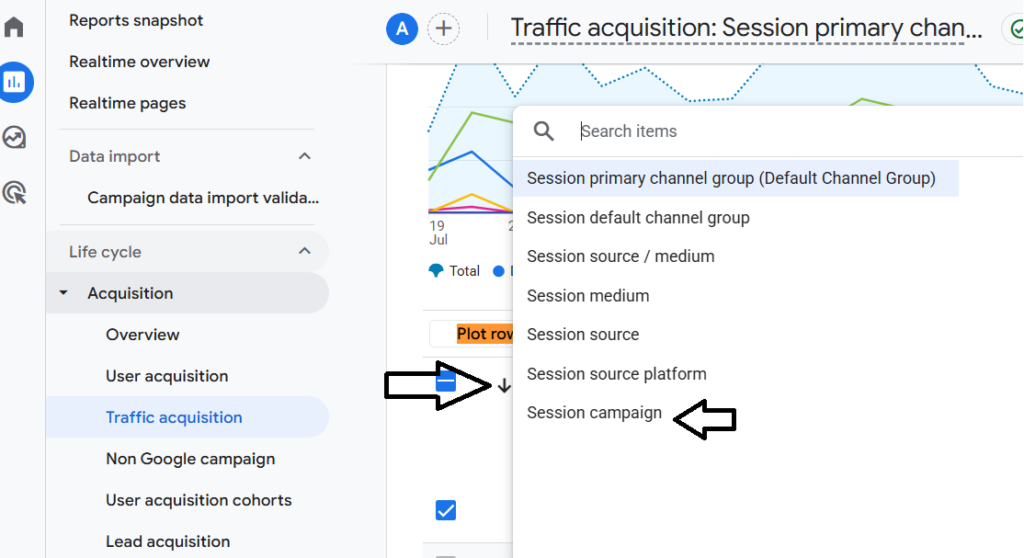
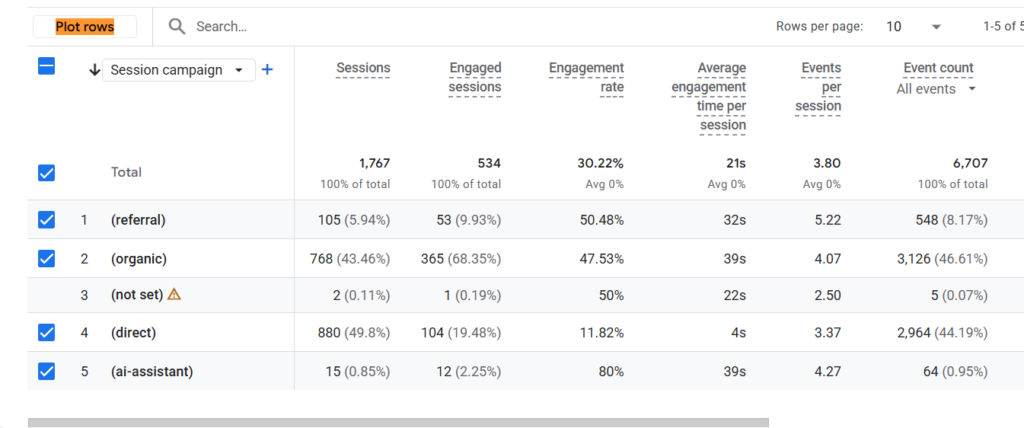
Session campaign dimension is now active and showing 5 different campaigns:
- (referral) – 105 sessions, 50.48% engagement rate
- (organic) – 768 sessions, 47.53% engagement rate
- (not set) ⚠️ – 2 sessions with NO campaign tagged (this is the mistake I warned about!)
- (direct) – 880 sessions, 11.82% engagement rate
- (ai-assistant) – 15 sessions, 80% engagement rate
You can also create custom reports using:
- utm_source
- utm_medium
- utm_campaign
- utm_content
Here in the screenshot below, you can see Data of Session Campaigns of one of our clients in GA4:
Step 3: Filter by Specific Campaign
Use the filter option to isolate a particular campaign. For example, when I was analyzing results for the pest control service provider’s Google Ads campaign, I filtered to show only utm_campaign=april_emergency_response.
The beauty of this is that you can now see:
- Traffic volume
- Conversion rate
- Cost per conversion
- Which ad copy drove actual customers
Real-World Example: The Business Consulting Firm Campaign
I worked with a business consulting firm in Europe last year, helping them track leads across multiple channels. They were running:
- Google Ads with different landing pages
- LinkedIn sponsored content with various headlines
- Email nurture sequences with different subject lines
Without UTM parameters, their director saw “1,200 leads generated” but had no idea which channel or message was actually working.
With UTM tracking, here’s what we discovered:
- Google Ads (utm_content: keyword_transformation): 450 leads, $18 cost per lead, 8% conversion to consultation
- LinkedIn (utm_content: headline_roi_focused): 380 leads, $22 cost per lead, 12% conversion to consultation
- Email (utm_content: subject_case_study): 370 leads, $4 cost per lead, 15% conversion to consultation
The insight? Email was their most cost-effective channel by far. They immediately shifted budget and strategy, and within the next quarter, their lead cost dropped by 35%.
Common Mistakes I’ve Made (So You Don’t Have To)
After managing ads for nearly two decades, I’ve learned what doesn’t work:
- Inconsistent naming conventions – Using “Campaign-1” in one URL and “Campaign_1” in another will split your data
- Not tracking null values – Always tag every link, even “organic” traffic you think shouldn’t be tracked
- Forgetting to test your links – Before going live with a campaign, always click your tracked links and verify the parameters in Analytics
- Over-complicating UTM values – Keep them simple and readable; spaces and special characters cause problems
The Competitive Advantage
Here’s what I tell every client: Most of your competitors aren’t using UTM parameters properly, if at all. This gives you a massive edge. While they’re making decisions based on gut feel, you’re making them based on data.
I’ve seen pest control service providers in India scale their ad spend from $500/month to $3,000/month confidently because they knew exactly which ad copy was converting. I’ve watched educational startups in Canada optimize their student acquisition cost by 40% just by understanding which email subject lines and LinkedIn headlines worked best.
Implement This Today
Set up your master UTM spreadsheet this week. Structure it properly. Use Google’s URL builder. Run one campaign with clean UTM parameters. Then go to Google Analytics and actually look at the data.
You’ll be amazed at what you discover. Probably the thing that surprises you most won’t be what was generating sales—it’ll be the money you were wasting on ads that looked good but didn’t perform.
That’s the power of UTM parameters. That’s how you stop guessing and start knowing.
Note from Backlinkgen.com: Amit has managed 2000+ USD in monthly ad spend across industries and optimized 40+ websites for conversion. He’s worked with pest control providers in India, educational startups in Canada, university admission campaigns, and B2B consulting firms in Europe.
About Author:
BacklinkGen.com Editorial Team
The BacklinkGen.com Editorial Team is led by Amit Tyagi, Gaurav Saxena and Rachit Srivastava—professionals with expertise spanning enterprise technology, artificial intelligence, digital marketing, SEO, AI Search Optimization (AIO/GEO), content strategy, and business growth. Together, they bring decades of combined industry experience across global technology initiatives, performance marketing, and digital transformation.
Every article published on BacklinkGen.com is guided by practical experience, in-depth research, and a commitment to editorial accuracy. The team focuses on delivering trustworthy, actionable, and up-to-date insights that help businesses, marketers, and professionals stay ahead in the rapidly evolving world of search, AI, and digital marketing.